
cuadriclock
Back to top

The time clock for construction crews

Clock in. Clock out.

For every trade on the job. Your crew clocks in from their own phone, only when they're on site, and you get clean hours for every quincena.

Runs in the browser English and Spanish Nothing to download

Site walk · Day 1
CarpentryConcreteElectricalPlumbingHVACDrywallRoofingWeldingExcavationPaintingMasonryIronwork

For every trade

One time clock app for every construction trade

Concrete, carpentry, plumbing, or welding: every crew clocks in the same way and gets its tasks on the phone. Each photo shows an example task.
Workers pouring concrete over rebar

Concrete

Pour slab, Level 2 east
Foreman70%
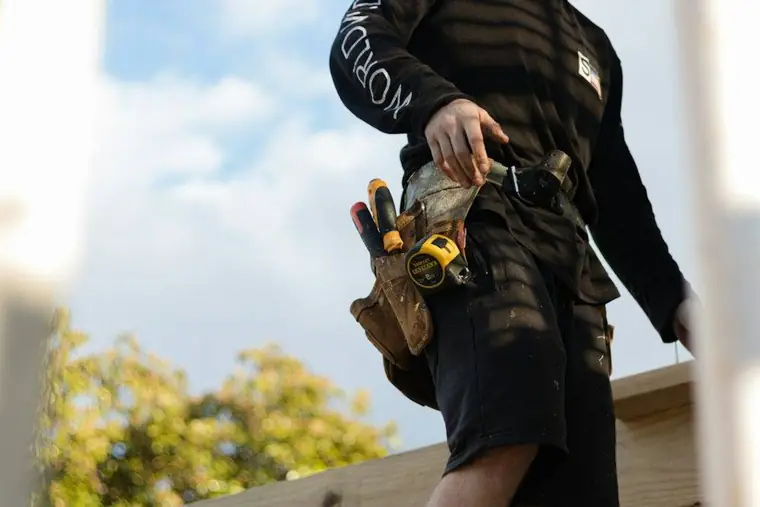
Carpenter wearing a leather tool belt

Carpentry

Frame walls, unit 12
Foreman45%
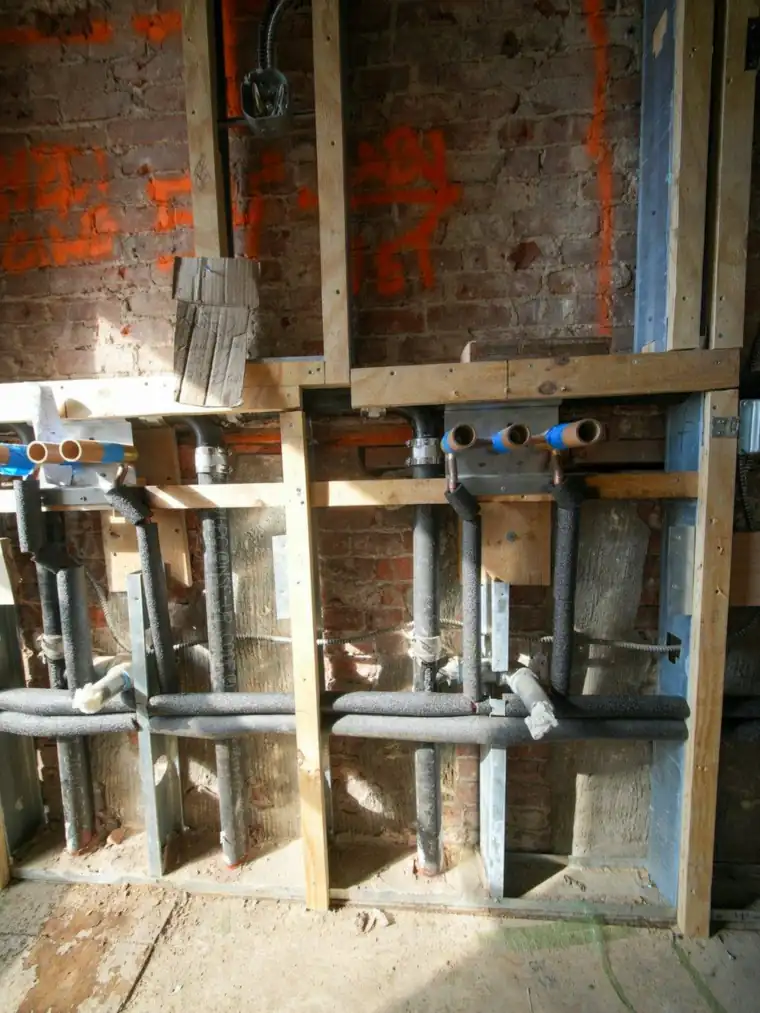
Open wall with plumbing pipes and electrical conduit

Electrical

Pull wire for panel B
Foreman60%
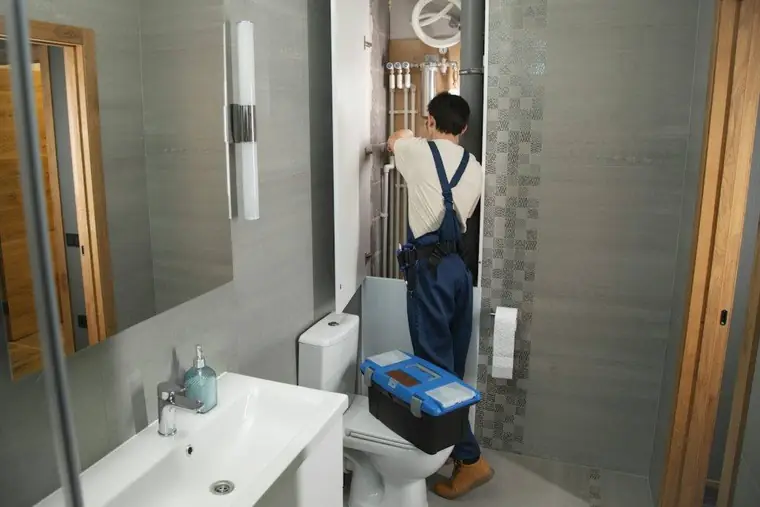
Plumber working in a bathroom

Plumbing

Set toilets, 4th floor
Foreman30%
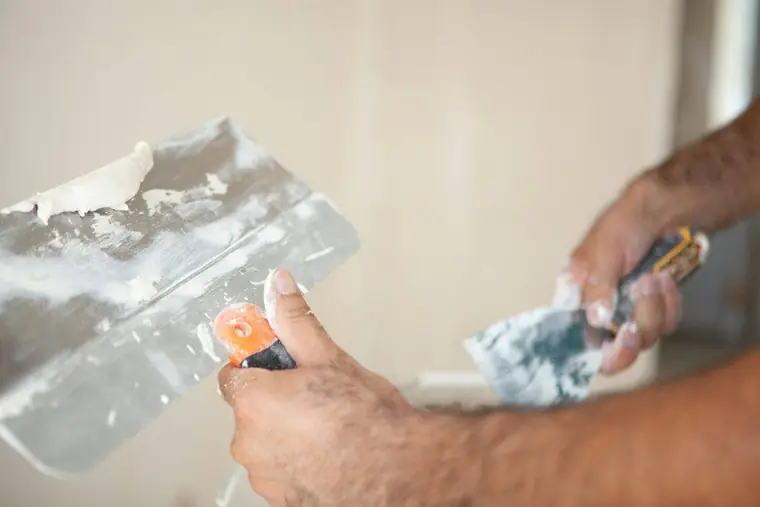
Hands finishing a wall with a trowel

Drywall

Tape and mud, hallway C
Foreman85%
Roofer carrying a bundle of shingles

Roofing

Shingle south slope
Foreman50%
Welder working with sparks

Welding

Weld stair stringers
Foreman20%
Yellow excavator on a gravel site

Excavation

Trench for storm drain, lot 3
Foreman65%

Example tasks show how they look in the app. Foremen write them in their own words, up to 150 characters.

Calculator

What do lost minutes cost you?

A late arrival written down as on time, a clock-out nobody recorded, hours rounded by hand. Move the controls to match your crew.

12
$25
Minutes lost per person, per day10 min
10 minutes is arriving at 7:05 and writing down 7:00, or leaving 5 minutes early twice.
11

Lost every quincena

$550

22 paid hours nobody worked.

Per month$1,100
Per year (24 quincenas)$13,200

This is an estimate using your own numbers. CuadriClock records the exact time and place of every punch, so those minutes show up instead of disappearing.

Inside the app

Time tracking, right on the phone

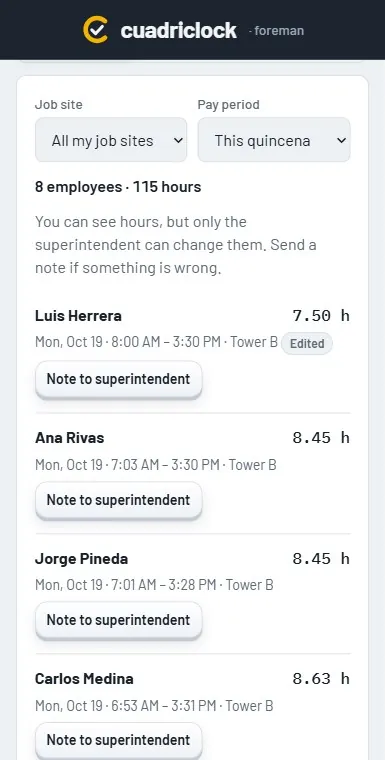
Real CuadriClock screens: first what a foreman sees on the phone, then what the superintendent sees.
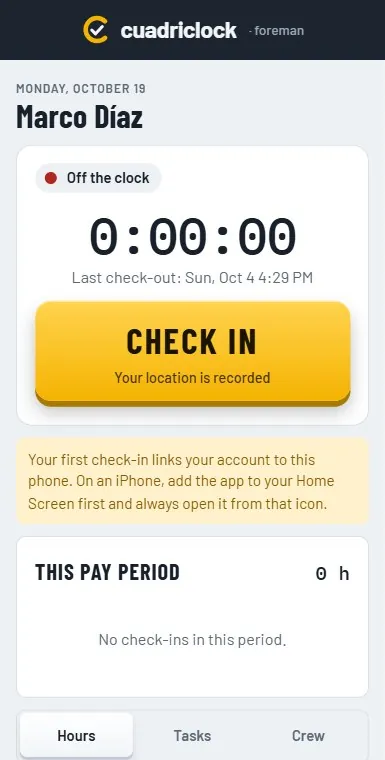
CuadriClock clock screen with a large Check in button and a timer
Clock inOne big button, a live timer, and the hours for the quincena.
Hours list showing each worker's punches, site, and an Edited flag
HoursEvery punch with times, site, and flags like Edited or Outside zone.
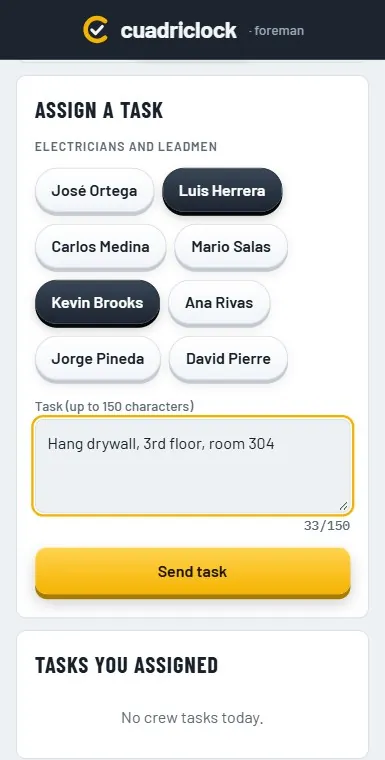
Assign a task screen with two workers selected and a task typed in
TasksPick who's on the clock, write the task, and send it.
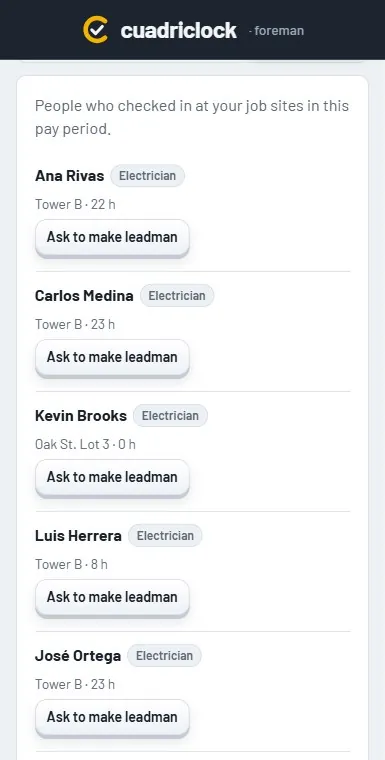
Crew list with each worker's site and hours
CrewWho checked in at your sites, and how many hours they have.

And on the superintendent's computer

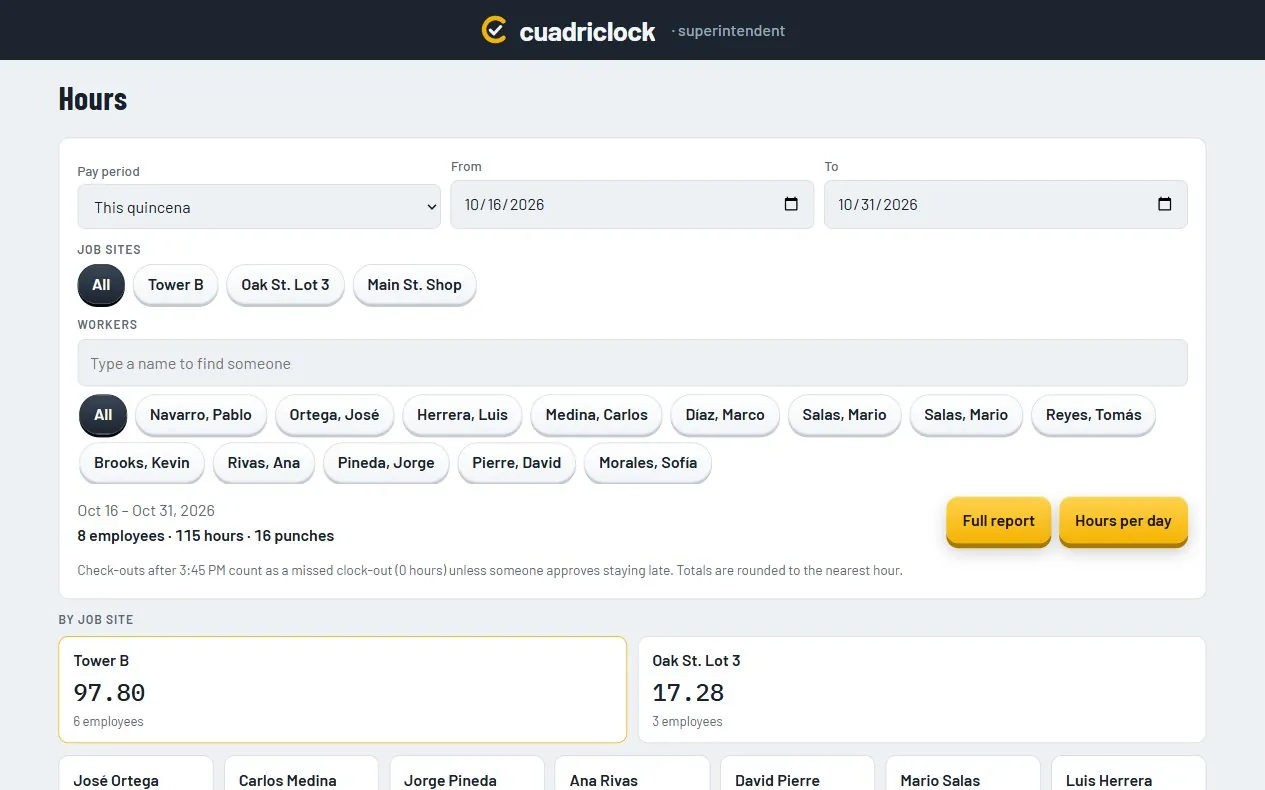
The same app in a browser, with everything needed to run sites, rules, and the quincena.
cuadriclock.com
Hours report filtered by pay period, job site and worker, with Full report and Hours per day buttons
Hours reportFilter by quincena, site, or worker. "Full report" and "Hours per day" download to Excel.
cuadriclock.com
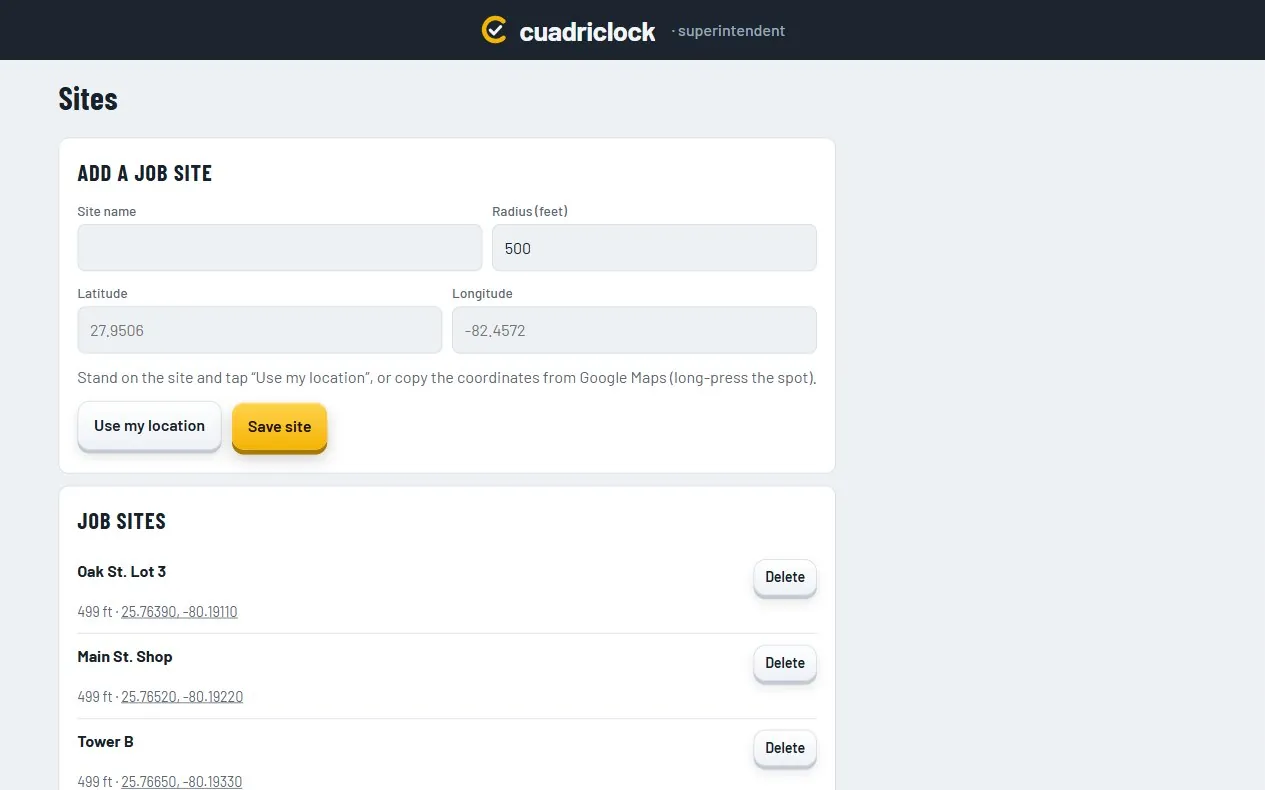
Job sites screen with a form to add a site and a list of sites with their radius
Job sitesAdd a site with its radius in feet, from your location or with Google Maps coordinates.
cuadriclock.com
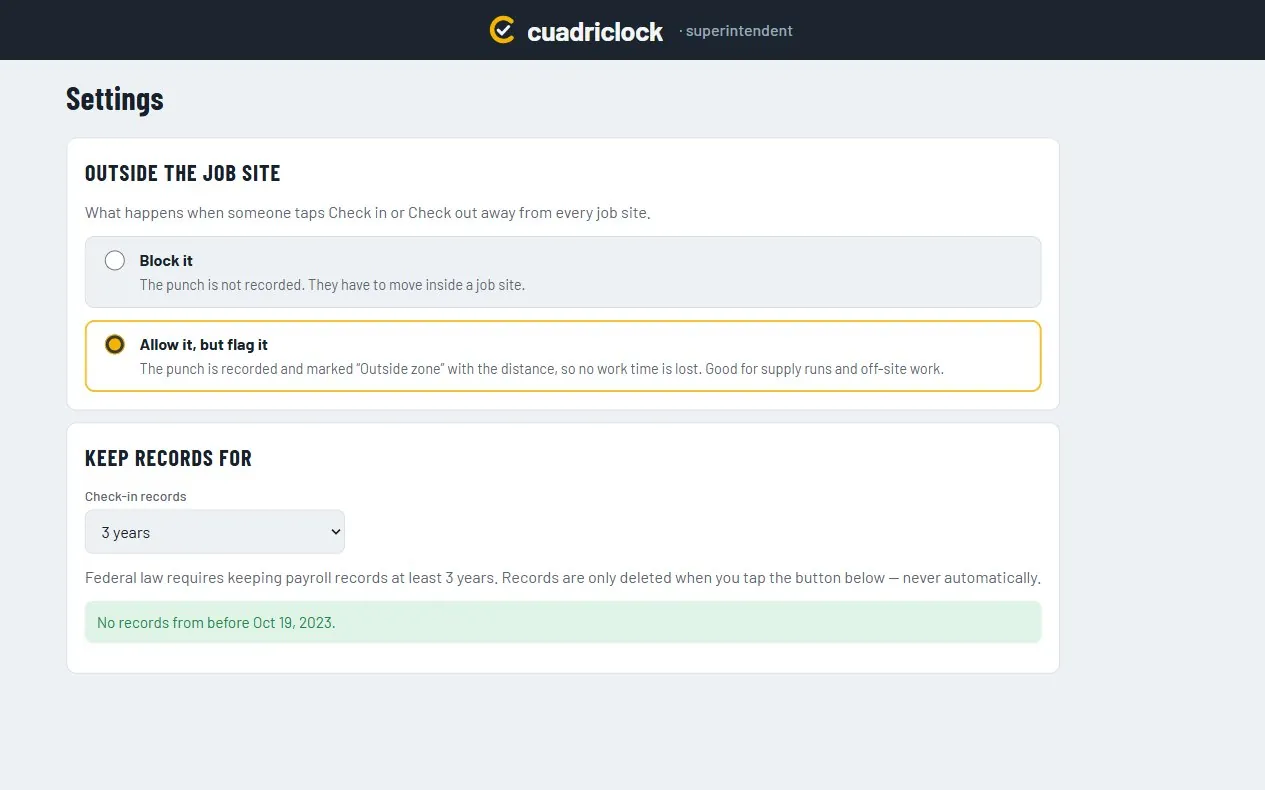
Settings screen with the outside-the-site rule and record retention
RulesBlock or flag punches outside the site, and choose how long to keep records.
cuadriclock.com
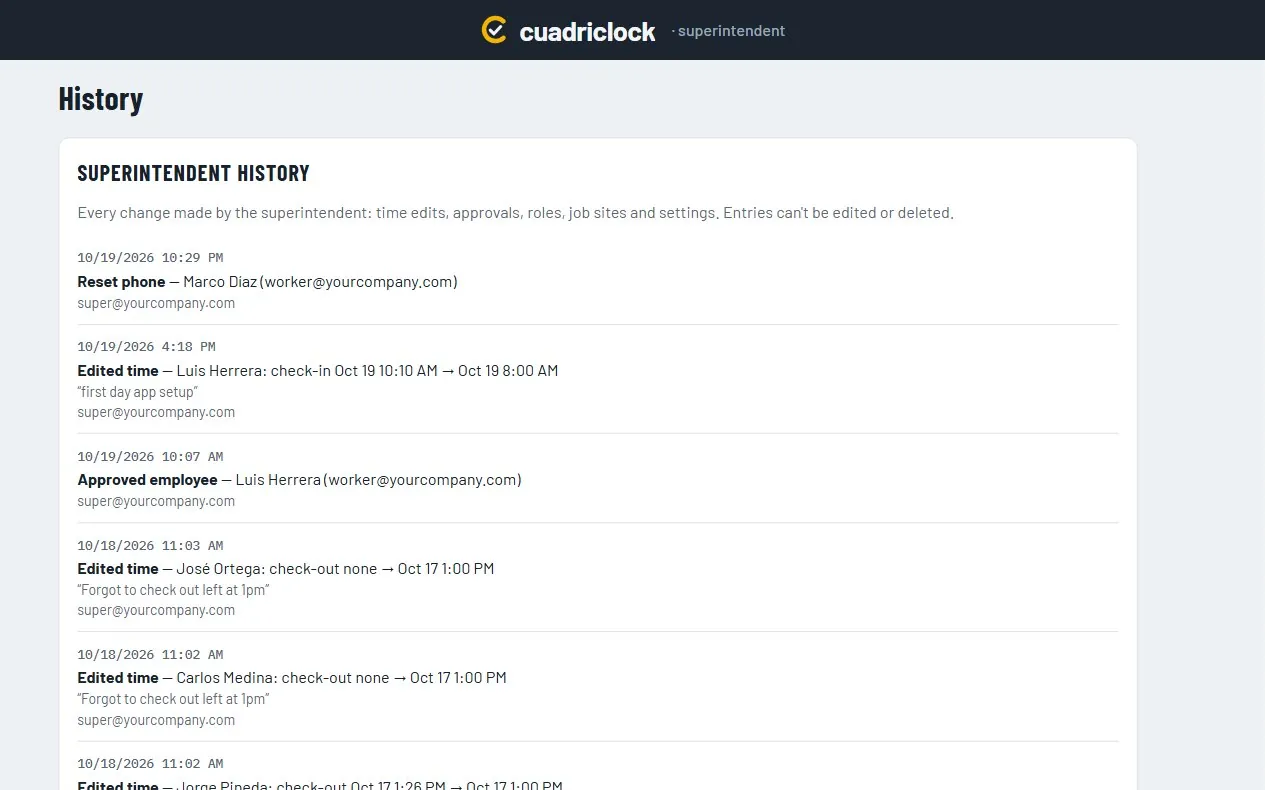
Superintendent history listing time edits with their reasons
HistoryEvery change the superintendent makes, with the reason. Entries can't be edited or deleted.

Names, emails, job sites, and coordinates changed for privacy.

Learn it in 5 steps

How CuadriClock works

From the first day on site to the payroll export to Excel. Each step says who does it and what they see on their phone.

Crew standing on a large construction site seen from aboveWho: superintendent
1Set up job sites

Draw a circle around the job

A job site is a point on the map with a radius in feet. That circle is called a geofence. Punches only count inside it.
  • Stand on site and tap "Use my location", or type the coordinates.
  • Pick a radius of 50 feet or more. Cover the parking area if people arrive there.
  • Assign each foreman their sites.
Try it belowThe geofence simulator lets you move a worker and see what happens when they punch.
Hard hats and safety vests hanging on a wallWho: the crew
2Bring your crew on

Send a link, not an app

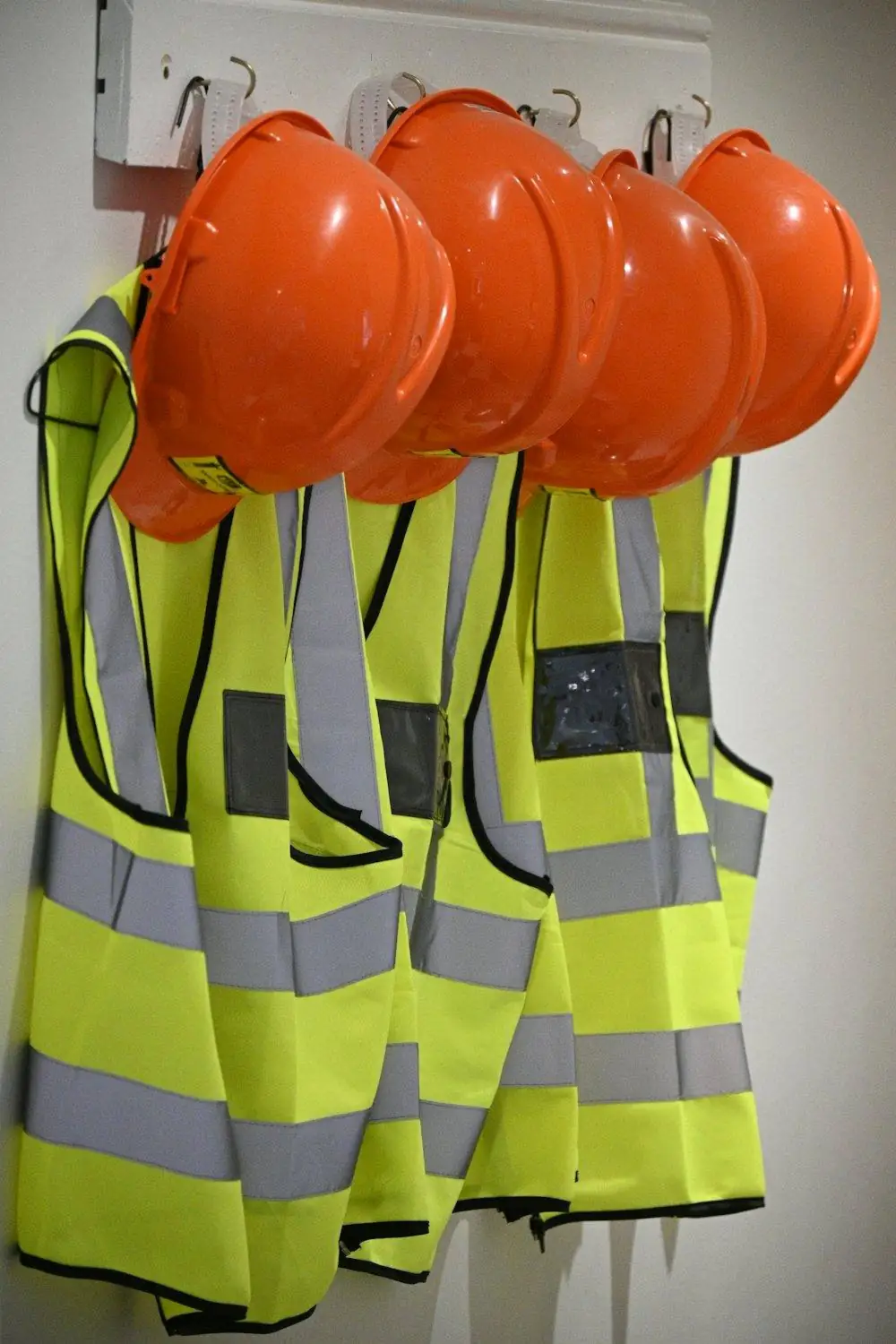
Each worker opens cuadriclock.com on their phone and creates an account. There's nothing to download from an app store.
  • Their account gets tied to that phone, so nobody can punch for someone else.
  • They read the location notice and tap "Agree and continue".
  • You approve them. Until then they see "Waiting for approval".
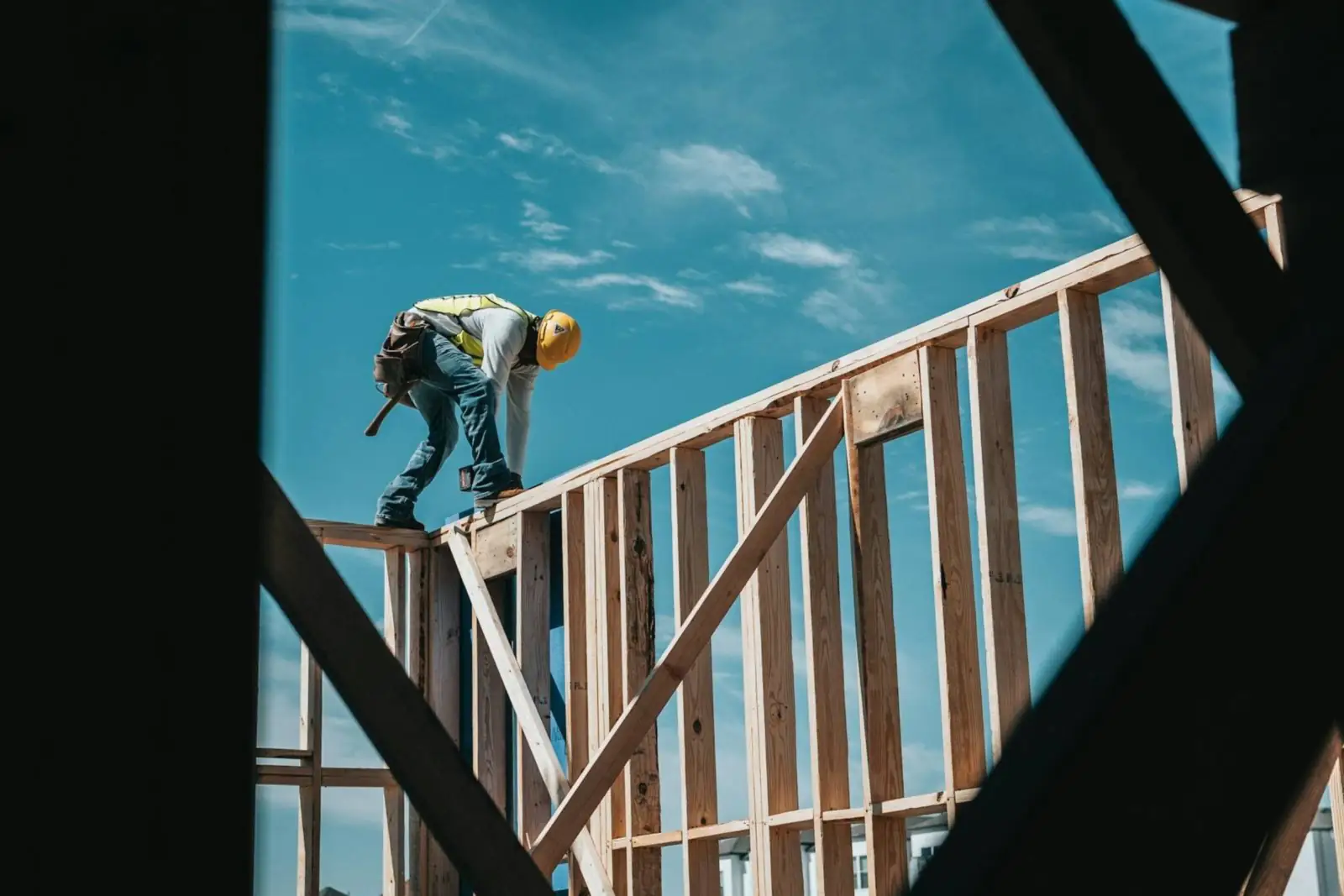
Framer working on top of a wood wall frameWho: everyone on site
3Punch in and work

One tap in, one tap out

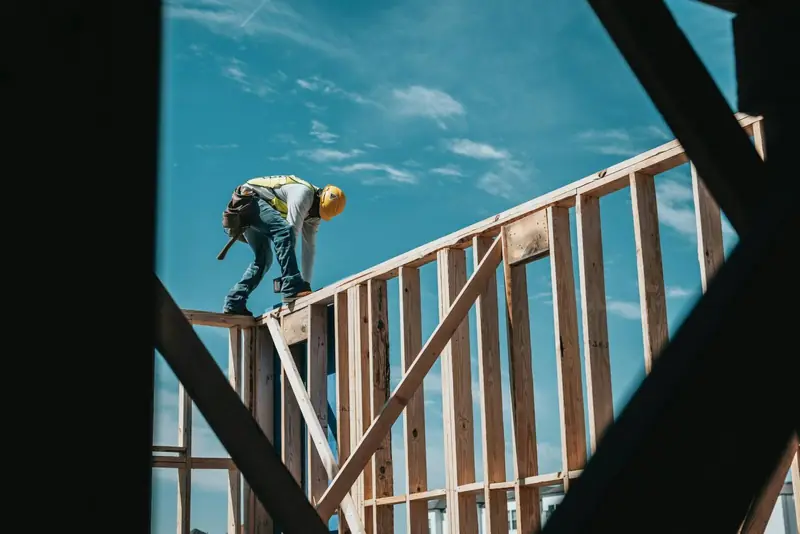
When someone taps "Check in", the phone checks that they're inside a site. Then the foreman assigns tasks to whoever is on the clock.
  • The foreman picks people who are on site and writes the task.
  • The leadman at that site gets a copy automatically.
  • The crew slides to show how much is done.
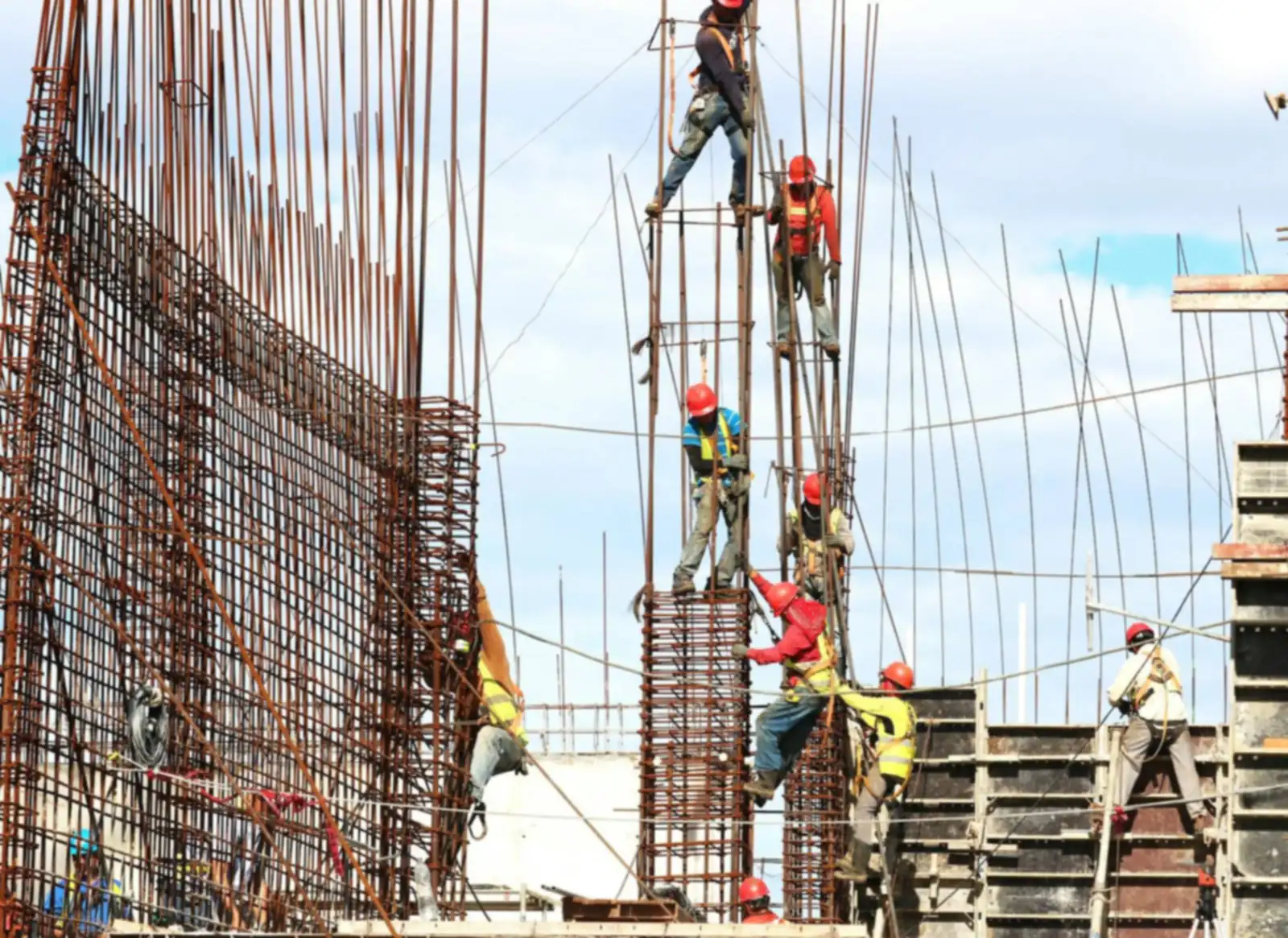
Building under construction with scaffoldingA normal day
4Catch the mistakes

What happens when someone forgets

  1. Ana checks in at Tower B, 42 ft from the center.
  2. The foreman assigns her "Tape and mud, hallway C".
  3. Ana leaves but doesn't check out.
  4. Her phone gets a missed clock-out alert.
  5. The foreman sends a note: "she left at 3:30". The superintendent fixes it, and the change stays in the edit history.
Staying late?The superintendent can approve someone to stay late that day, so they don't get the alert.
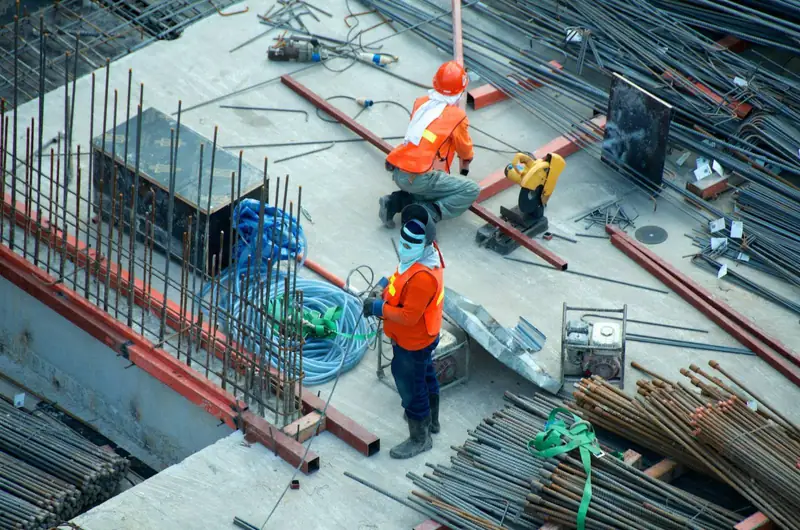
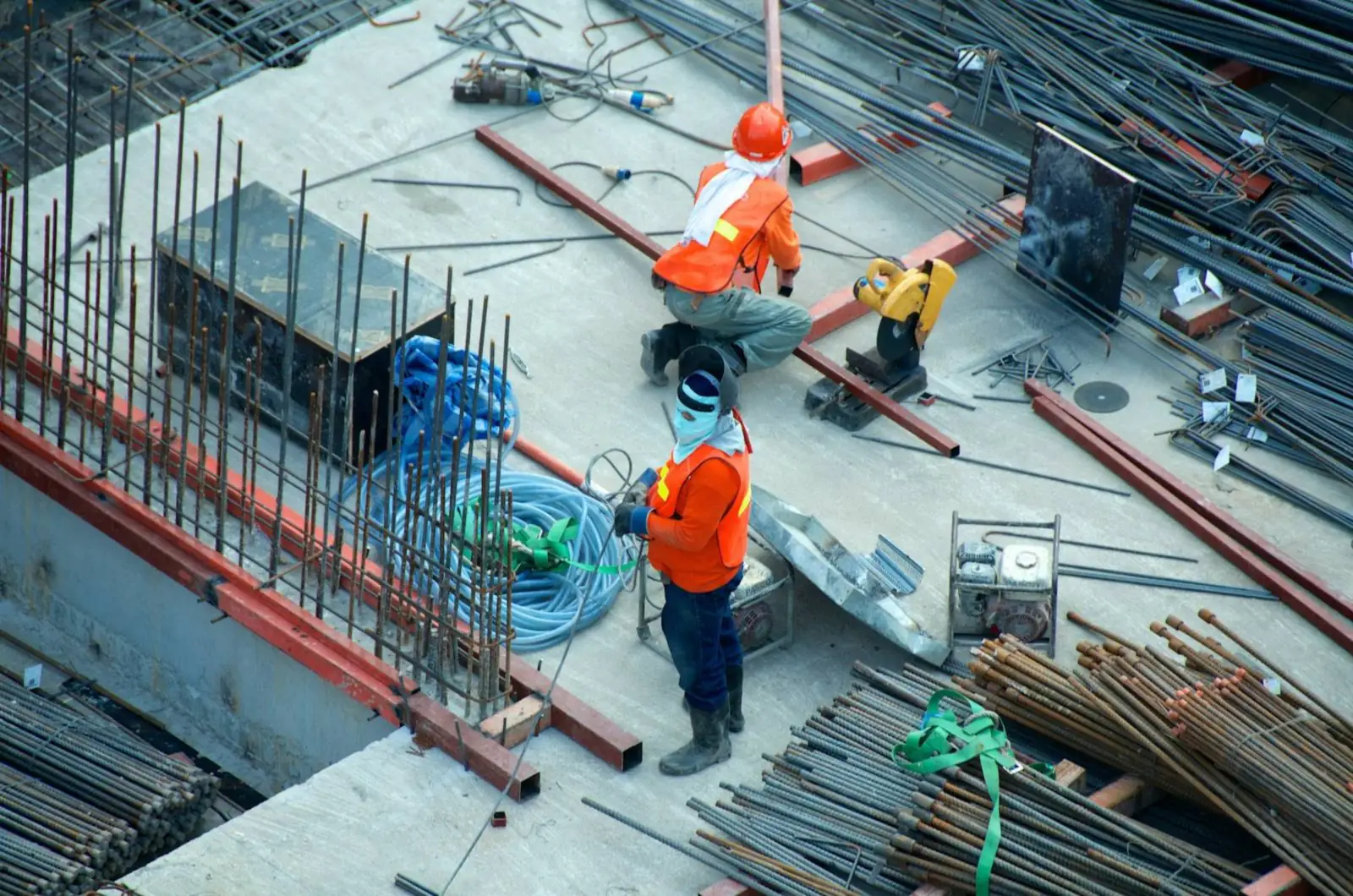
Workers preparing a concrete deck seen from aboveWho: superintendent
5Pay the quincena

From phones to Excel in one tap

Pick this quincena, last quincena, or custom dates. Filter by site or by name and export the timesheet. Every row carries the site, hours, distance, and flags.

  • Outside-zone punches and edits come flagged.
  • Keep records forever, or clear them after the period you choose.
CuadriClock_Quincena_Oct1-15.xlsx · example rows
NameTradeCheck In SiteInOutDistance (ft)Counted HoursNote
Luis HerreraCarpentryTower B6:58 AM3:31 PM428.50On site
Ana RivasDrywallTower B6:30 AM3:30 PM1189.00Edited: forgot to check out
Jorge PinedaConcreteOak St. Lot 36:45 AM3:15 PM6128.50Outside zone
Marco DíazPlumbingOak St. Lot 36:30 AM5:15 PM2710.75Late approved
Day total36.75

Try it

The geofence simulator

Drag the yellow worker around the map, change the radius and the rule, and tap "Check in" to see what they'd see on their phone.

TOWER B PARKING 200 ft Drag the yellow dot, tap the map, or use the arrow keys to move the worker.
300 ft
If they punch outside the site
Move the worker to
Check-in saved Inside Tower B. The shift starts now. 123 ft from the site center

Who does what

Four roles, just like on site

Each person sees only what they need. Foremen ask, superintendents approve.

TaskWorkerany tradeLeadmanruns the crewForemanruns their sitesSuperintendentruns everything
Check in and out on siteYesYesYesNo
See tasks and update progressYesYesNoNo
Get a copy of the crew's tasksNoYesNoNo
Assign tasks to people on the clockNoNoYesYes
Fix hoursNoNosends a noteYes
Promote to leadmanNoNoasksYes
Add sites and approve crewNoNoNoYes
Export the quincena to ExcelNoNoNoYes

Privacy

It only knows where you are when you tap the button.

  • No background trackingLocation is saved when you check in and check out. It does not track your location at any other time.
  • Consent comes firstBefore starting, every worker reads the notice and taps "Agree and continue".
  • Your records are yoursAny worker can ask their supervisor for a copy of their records at any time.

Questions

Construction time clock FAQ

Does my crew have to download anything?

No. CuadriClock runs in the phone's browser. If they want, they can add it to their home screen and it opens like an app.

Does it work for my trade?

Yes. Punches, sites, and the quincena work the same for concrete, carpentry, plumbing, electrical, drywall, roofing, or any other crew. Foremen write tasks in their own trade's words.

Does it follow my workers all day?

No. Location is saved only at the moment they check in or check out.

What if someone tries to punch from home?

It depends on your rule. With "Block it", the punch isn't saved and they're told to move inside a site. With "Allow, but flag it", it's saved with an Outside zone flag for you to review.

What if someone gets a new phone?

The superintendent resets that person's phone, and the account links to the new one the next time they sign in.

What's a quincena?

A half-month pay period: the 1st to the 15th, and the 16th to the end of the month. You can also export custom dates.

Get your crew clocking in today

Create your account, add your first job site, and send the link. There's nothing to install.

Questions? Email us at info@cuadriclock.com

Put it on your home screen

  1. Open cuadriclock.com/app on your phone.
  2. iPhone: tap Share, then "Add to Home Screen".
  3. Android: tap the ⋮ menu, then "Install app".